Daily Checklist for Employees: How to Set One Up in Google Sheets
Daily checklist for employees in Google Sheets: list routines, set owners and frequency, collect photo proof, escalate misses and review it every week.
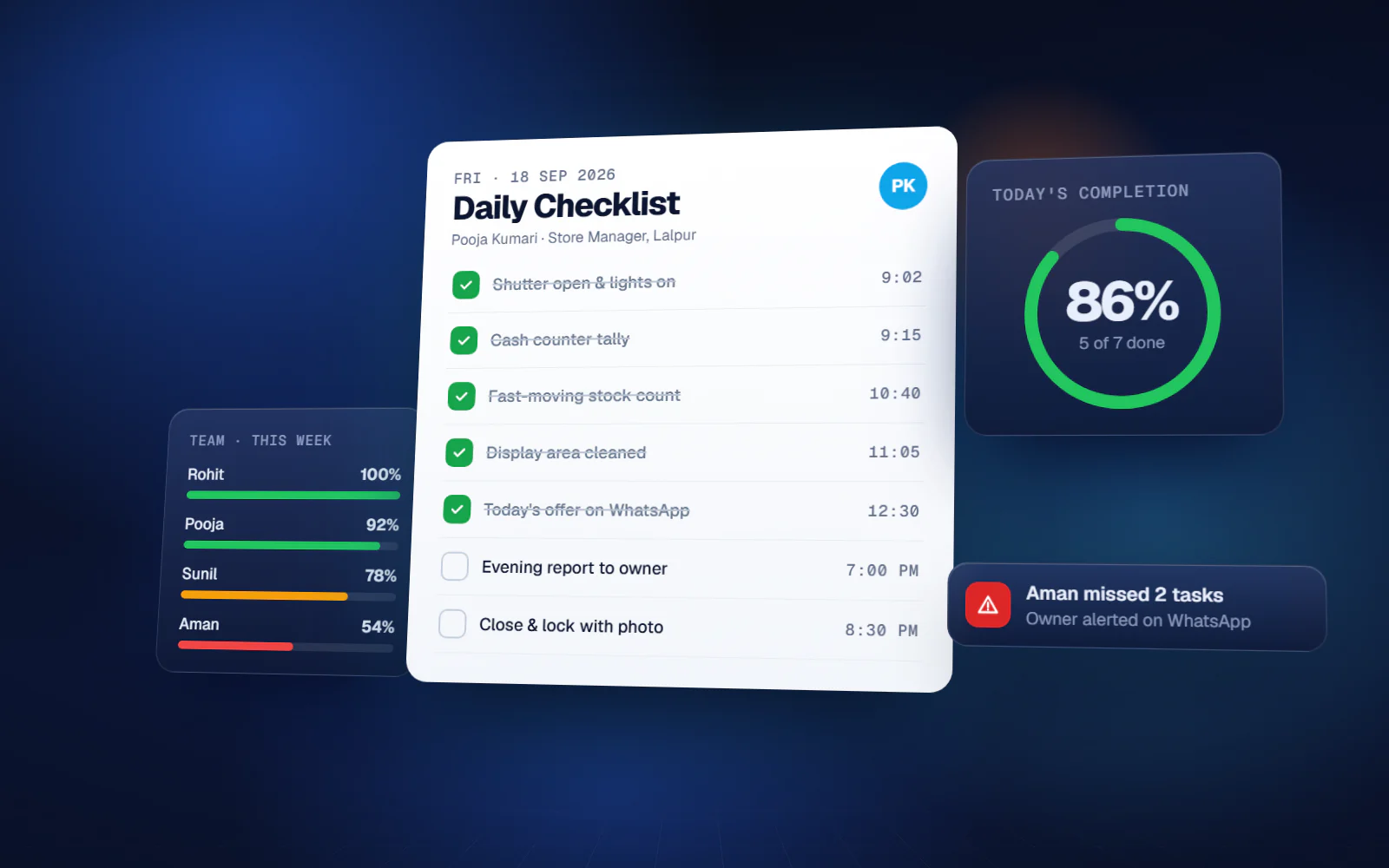
A daily checklist for employees is the cheapest management tool a growing business can have. Most owners already know which routine jobs keep slipping — the shop opens late, the stock count is skipped, the machine is not cleaned, the daily sales report arrives on Thursday. The problem is not that staff do not know the job. It is that nobody can see, today, whether it was done. This guide shows how to build a working checklist in Google Sheets: what goes in it, who owns each line, how often it repeats, how to collect proof, what happens when something is missed, and how to review it every week.
Why WhatsApp reminders do not work as a checklist
In most small businesses the checklist lives in the owner's head and is delivered through WhatsApp: 'Did you check the generator?' 'Has the cash been deposited?' That has three problems. The owner has to remember to ask. The answer is a message that disappears up the chat. And there is no record, so at the end of the month nobody can say how often the task was actually done.
A checklist fixes this by turning each routine into a line with an owner, a frequency and a tick. The owner stops asking and starts looking.
Step 1: List every routine task
Sit with each department for twenty minutes and write down everything that repeats. Do not filter yet. Typical examples:
- Opening and closing: shutter, lights, CCTV check, cash counter handover
- Housekeeping: floor, washroom, display area, pantry
- Operations: machine cleaning, stock count of fast-moving items, dispatch register update
- Sales and accounts: daily sales report, payment follow-up calls, bank deposit
- Weekly and monthly: vendor statement check, fire extinguisher check, GST data to the accountant
A good test for what belongs on the list: if someone forgets it today, will it cost you money, a customer or a compliance problem later? If yes, it goes on the checklist.
Step 2: Give every task one owner
A task owned by 'the team' is owned by nobody. Each line needs one named person, plus a backup for when that person is on leave. If two people share a routine, split it into two lines. Owners should be roles you can reassign (Store In-charge, Accounts Executive) with the current name next to them, so the sheet survives staff changes.
Step 3: Set the frequency and the deadline
Every task needs two things: how often it repeats and by what time it must be done. 'Clean the machine' is vague. 'Clean machine 2 — daily by 10:00 am' is checkable.
| Frequency | Examples | Deadline style |
|---|---|---|
| Daily | Opening checks, cash handover, daily sales report | A time of day, e.g. by 10:00 am |
| Weekly | Stock count, vendor follow-up, weekly report | A day and time, e.g. Saturday 5 pm |
| Monthly | Compliance, statements, equipment servicing | A date, e.g. 5th of every month |
| Quarterly / yearly | Licence renewals, audits, AMC renewals | A fixed date with a reminder two weeks before |
Step 4: Build the daily checklist in Google Sheets
You do not need software to start. A Google Sheet with two tabs is enough for a small team.
Tab 1: Master list
One row per routine task, with columns: Task ID, Task, Department, Owner, Backup, Frequency, Deadline time, Proof required (yes/no) and Instructions (a one-line SOP). This tab changes rarely.
Tab 2: Daily log
One row per task per day: Date, Task ID, Owner, Done (a checkbox from Insert > Checkbox), Time done, Proof link and Remarks. Use a formula to pull the task name and deadline from the master list, and conditional formatting to turn a row red when the deadline has passed and the checkbox is still empty.
- Protect the master list so only the owner or manager can edit it
- Share the log with staff on their phones — the Google Sheets app handles checkboxes fine
- Add a filter view per person so each employee sees only their own tasks
- Freeze the header row and keep columns few, or nobody will fill it on a small screen
Step 5: Ask for proof where it matters
A tick costs nothing to fake. For tasks where the result is visible — a clean floor, a filled register, a stocked shelf — ask for a photo. The simplest way in Google tools is a Google Form with a file upload question that feeds the sheet. Two things to know: a file upload question requires the person filling the form to sign in to a Google account, and the uploaded files are stored in the form owner's Google Drive, so plan for the storage.
Do not demand a photo for every line. Reserve proof for tasks that are often skipped or that carry real risk. Too much proof becomes its own chore and people start sending the same photo.
Step 6: Decide what happens when a task is missed
A checklist without consequences becomes wallpaper within a month. Write down an escalation rule and share it with the team before you go live:
- Deadline passes — the task turns red for the owner
- Two hours later — the department head is informed
- Missed three times in a week — it comes up in the weekly review with the owner present
- Critical tasks (cash, safety, compliance) — the business owner is informed the same day
In a manual sheet, the manager does this by filtering red rows at a fixed time every day. In an automated system, the reminders and escalations go out on their own.
Step 7: Run a 15-minute weekly review
Once a week, look at completion by person and by task. You are looking for patterns, not for someone to shout at.
| What you see | What it usually means | What to do |
|---|---|---|
| One person misses many tasks | Overloaded, or not trained | Rebalance the list or retrain |
| One task is missed by everyone | The deadline is unrealistic or the SOP is unclear | Change the time or rewrite the instruction |
| Everything is 100% every day | Ticks may be filled from memory | Add photo proof or spot-check |
| Tasks are done but problems repeat | The checklist item is not the real control | Rewrite the task around the outcome |
When a Google Sheet stops being enough
A sheet works well for one location and a small team. It starts to strain when the daily log runs to thousands of rows, when someone has to copy tomorrow's tasks by hand every evening, when reminders depend on the manager remembering, or when you need to see several branches side by side. That is the point to automate: daily tasks generated on their own, reminders on schedule, overdue items flagged and a completion report ready without anyone building it.
Yuktantra's checklist system does exactly this — recurring daily, weekly and monthly checklists, role-based assignment, automated reminders, SOP compliance tracking and completion reports. It is mobile-friendly, so staff tick tasks from their phones. For many teams it runs on Google Sheets with Apps Script; when volume or permissions outgrow Sheets, it is built as a web app. Scope is written down first and the quote is fixed for that scope.
Whichever route you take, the principle is the same: a daily checklist for employees works when every task has one owner, a clear deadline, visible proof where it matters and a weekly review that fixes the list, not just the people.
FAQ
How do I make a daily checklist for employees?
List every routine task, give each one a single owner, set how often it repeats and a deadline time, and track it in a shared sheet with a checkbox per task per day. Add photo proof for tasks that are often skipped and review completion once a week.
Can I make a checklist in Google Sheets on mobile?
Yes. Checkboxes inserted in Google Sheets can be ticked in the Google Sheets mobile app. Keep the columns few and give each person a filter view so the sheet is readable on a phone.
What should be included in a daily checklist for staff?
Anything that repeats and costs you if it is forgotten: opening and closing checks, cleaning, stock counts, daily reports, payment follow-ups and deposits, plus weekly and monthly compliance tasks.
How do I make sure employees actually complete the checklist?
Make it visible and give it consequences. Each task is ticked against a name and a time, overdue items turn red, photo proof is required for risky tasks, misses are escalated by a fixed rule, and completion is reviewed every week.
Is there a daily checklist app for employees?
Many exist. If your routines are simple, a Google Sheet may be enough. If you need automatic reminders, escalation and reports across roles or branches, a checklist system built around your own routines avoids forcing your team into a generic app.